What Is a Desktop Time Blocking App?
A to-do list can tell you what needs attention, but it cannot tell you whether all of that work will fit into today. A desktop time blocking app solves that problem by turning tasks into visible periods on a calendar, so you can see what you plan to do, when you plan to do it, and how long you are willing to spend.
ChronoBlock brings that workflow into a focused desktop workspace for Windows and macOS. It combines tasks, a visual calendar, progress tracking, and a built-in Pomodoro timer while keeping planning data on your device. The objective is not to control every minute; it is to give important work a realistic place in the day.
- Capture tasks quickly.
- Turn tasks into calendar blocks.
- Move or resize blocks as the day changes.
- Start a focus session from the plan.
- Review whether your estimates were realistic.
Why Use a Desktop App Instead of a To-Do List?
Traditional task managers are good at storing commitments, but a long list can hide the limits of your day. Ten tasks may look manageable until you estimate their duration and place them beside meetings, meals, and other fixed commitments. A visual schedule exposes those trade-offs immediately.
A desktop app also keeps the plan close while you work, without adding another browser tab beside email, chat, and research. For people who prefer a dedicated planning environment, that separation can make the routine easier to maintain.
The Features That Matter Most
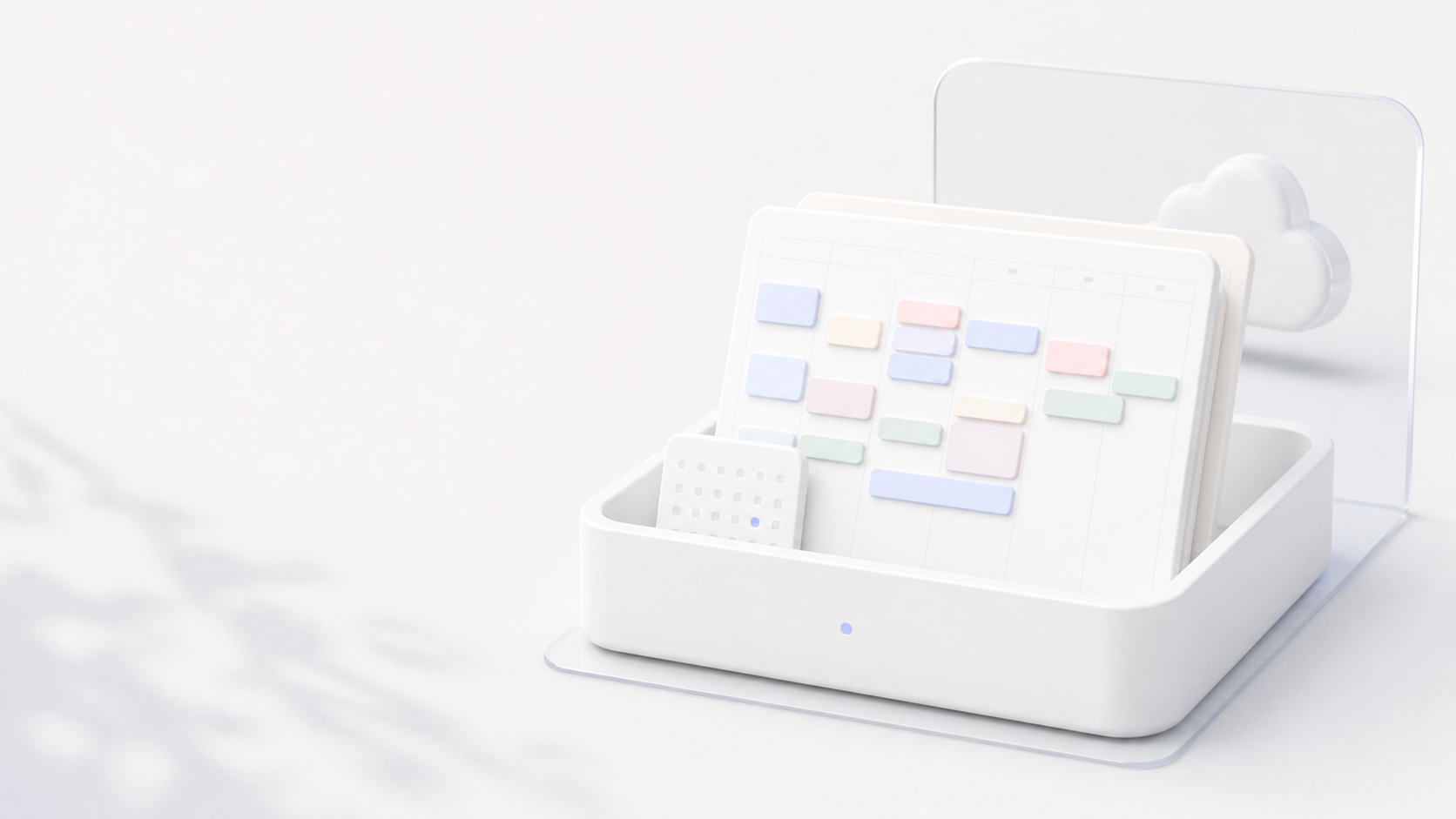
A practical time blocking workflow depends on a small number of fast interactions. In ChronoBlock, you can drag a task onto the time grid to create a block, create a block directly, move it, resize it, copy it, and update its completion status. Tasks and scheduled work stay in the same desktop workflow.
The calendar helps you see what should happen now, what comes next, and whether the rest of the day still fits. When it is time to work, the built-in Pomodoro timer and stopwatch provide focus, short-break, and long-break modes without requiring a separate timer app.
- Fast task capture and editing.
- Drag-and-drop scheduling.
- Day, week, and month navigation.
- Visible completion and progress states.
- A built-in Pomodoro timer and stopwatch.
- Simple moving, resizing, and copying when plans change.
A Practical ChronoBlock Workflow
Start by adding the tasks that matter today and give each one a realistic duration. Place fixed commitments on the calendar, then drag your most important task into your best focus window. Add one or two blocks for smaller or reactive work, and leave open space for transitions, interruptions, or inaccurate estimates.
When it is time to begin, select the block and start a focus timer. When the session ends, mark the work complete, resize the block, or move the remaining work to another realistic slot. At the end of the day, review what changed. The goal is not to score the plan as a success or failure; it is to improve tomorrow’s estimates.
- Plan fixed commitments first.
- Choose one to three important outcomes.
- Keep the calendar about 60–80% full.
- Use a timer to make starting easier.
- Repair the schedule instead of abandoning it.
Windows and macOS Downloads
ChronoBlock currently provides desktop downloads for Windows and macOS. The download page lists Windows 10 or later with an x64 setup.exe installer, and macOS 11 or later with a DMG package. Sign in on the website to download and activate the 30-day free trial.
ChronoBlock is distributed by an independent developer, and the current builds are not covered by the paid Apple and Microsoft code-signing certificates that suppress operating-system warnings. Windows SmartScreen or macOS Gatekeeper may ask you to confirm the installation. Download only from the official ChronoBlock website and verify the source before continuing.
Local Data, Offline Work, and Privacy
ChronoBlock stores tasks, time blocks, projects, and notes in a local database on your computer. The core planning workflow is designed to remain available offline after activation, so your schedule does not depend on a cloud calendar database or a continuous internet connection.
Local-first does not mean the app will never need the internet. Download, activation, and periodic license verification require an online step. Local storage also makes backups your responsibility: a lost computer or failed drive cannot be recovered by a cloud service that never received the data.
- Planning data stays on your device.
- Core scheduling remains usable without continuous internet.
- No cloud calendar database is required for the basic workflow.
- Local backups remain important.
Free Trial, Lifetime Access, and Accounts
The current public flow offers a 30-day free trial. You sign in, download the desktop app, and activate the trial. This is more precise than describing ChronoBlock as a permanent free tier.
For continued use, the pricing page offers a Lifetime license for a one-time payment rather than a monthly or annual subscription. The normal website purchase flow binds that license to an account and currently supports up to three devices. Pricing and terms can change, so check the pricing page for the latest details before purchasing.
Calendar Sync and Recurring Tasks
ChronoBlock currently works as a standalone local planner. External Google, Outlook, or Apple Calendar synchronization is not part of the current release, and “no cloud sync needed” should not be read as a claim that calendar integrations are included.
Native recurring tasks and recurring time blocks are not included in the current release either. You can copy blocks to reduce repeated setup, but that is different from a recurrence system that automatically creates future instances. ChronoBlock is a strong fit when you want a focused manual workflow; a cloud calendar platform may be a better fit when multi-account sync, shared schedules, or automated recurrence is essential.
Who Is ChronoBlock Best For?
ChronoBlock suits people who want a visual desktop planner for Windows or macOS, local storage for personal planning data, offline access to the core workflow, a built-in focus timer, and a one-time purchase option. Its deliberately manual approach can be useful when you want to decide how your day changes instead of handing the schedule to an automatic planning system.
The best productivity tool is not the one with the longest feature list. It is the one whose trade-offs match the way you actually work. If that sounds like your workflow, download ChronoBlock, compare the Lifetime option on the pricing page, or begin with the practical time blocking guide in this journal.
常見問題
Is there a desktop time blocking app for Windows and macOS?
Yes. ChronoBlock offers a Windows x64 installer for Windows 10 or later and a macOS DMG for macOS 11 or later.
Can ChronoBlock work offline?
The core planning workflow and locally stored data remain available offline after activation. Download, activation, and periodic license verification require an internet connection.
Does ChronoBlock keep data locally?
Yes. Tasks, time blocks, projects, and notes are stored in a local database on your computer.
Is ChronoBlock free?
ChronoBlock offers a 30-day free trial. Continued access is available through a one-time Lifetime license rather than a permanent free tier.
Does ChronoBlock sync with Google Calendar or Outlook?
No. External Google, Outlook, and Apple Calendar synchronization is not part of the current release.
Does ChronoBlock support recurring tasks?
No. Native recurring tasks and recurring time blocks are not included in the current release.
Does ChronoBlock include a Pomodoro timer?
Yes. The desktop app includes focus, short-break, and long-break Pomodoro modes, plus a stopwatch.